Screens
Every screen, as it looks on Windows.
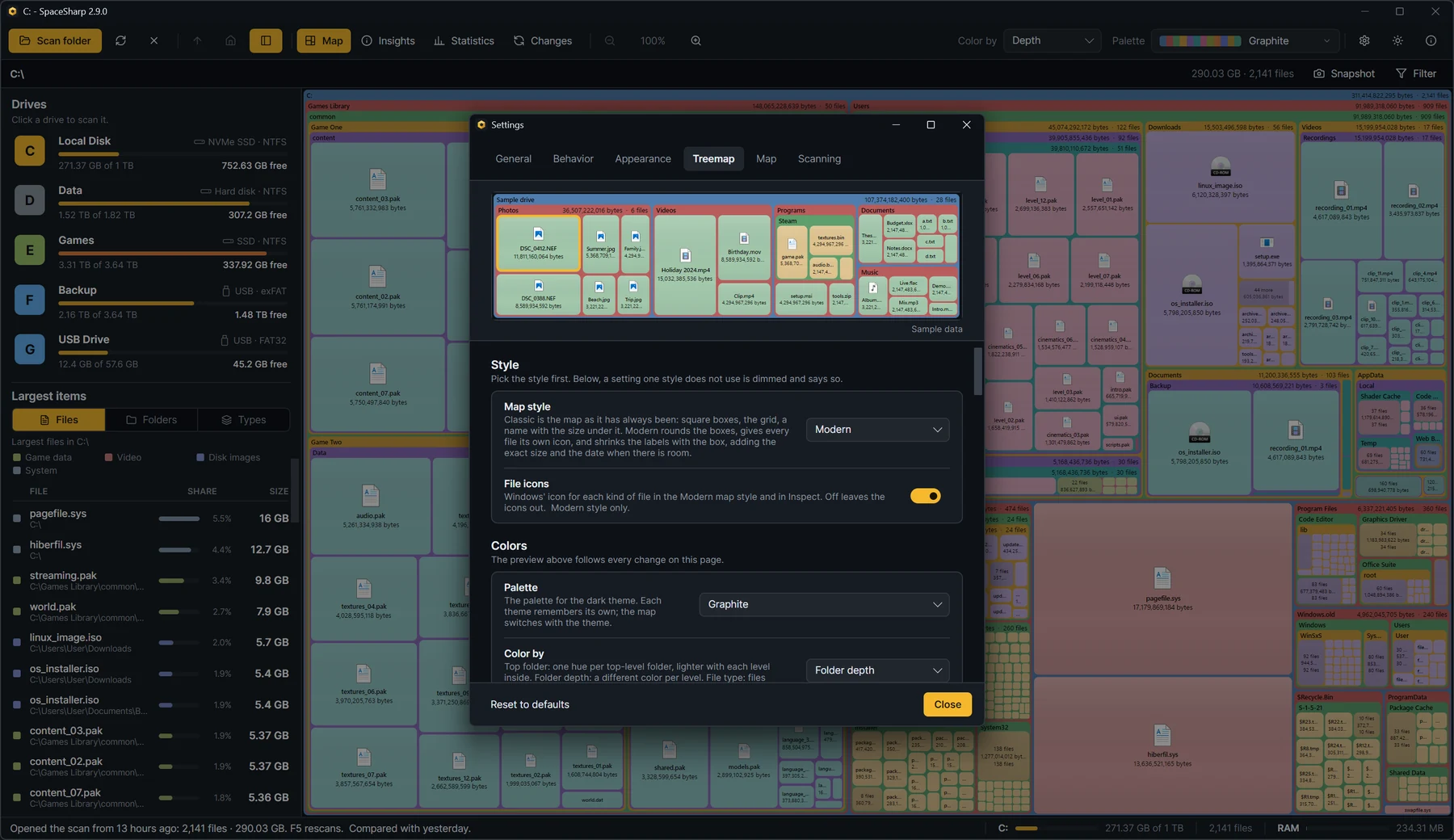
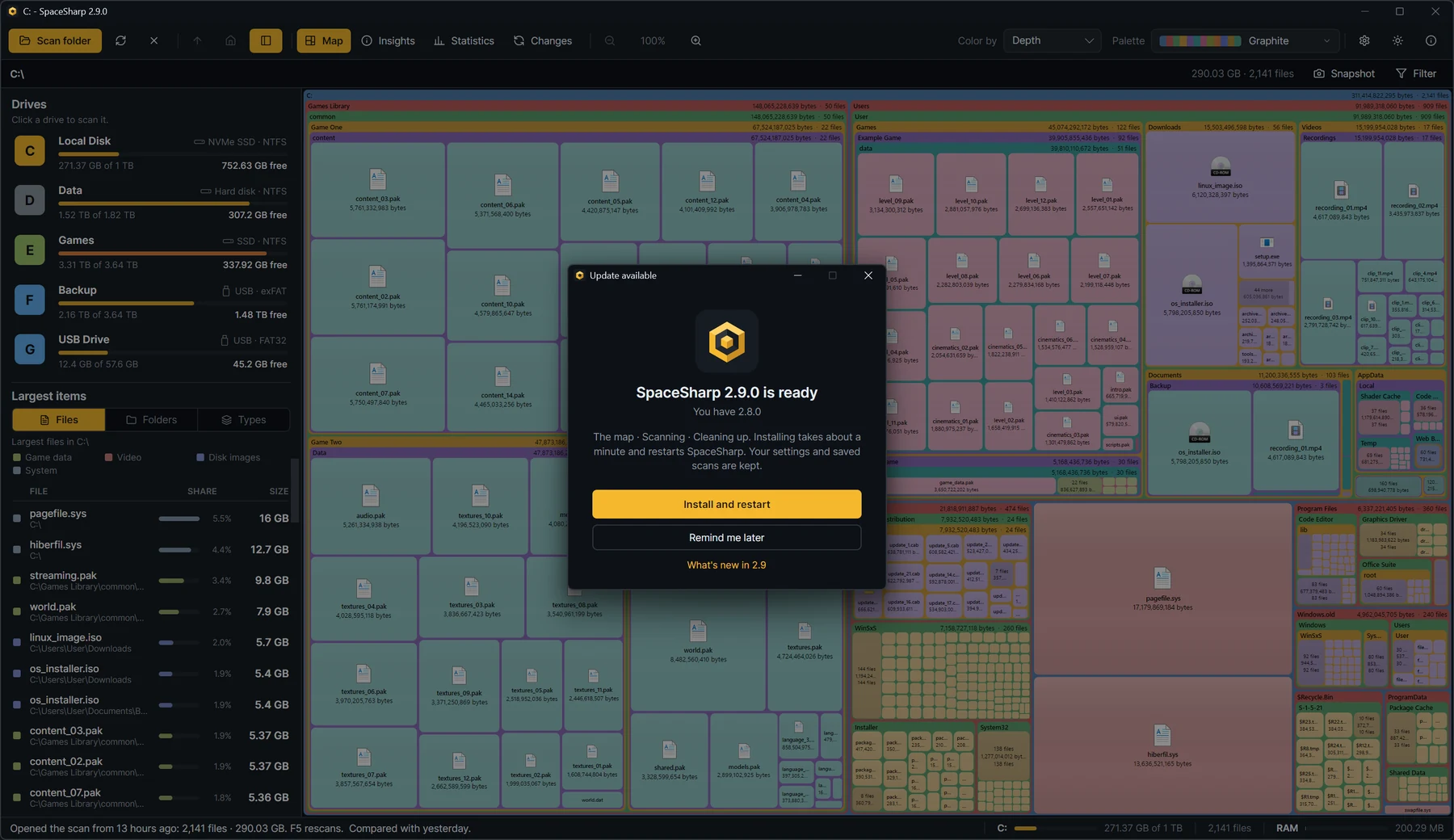
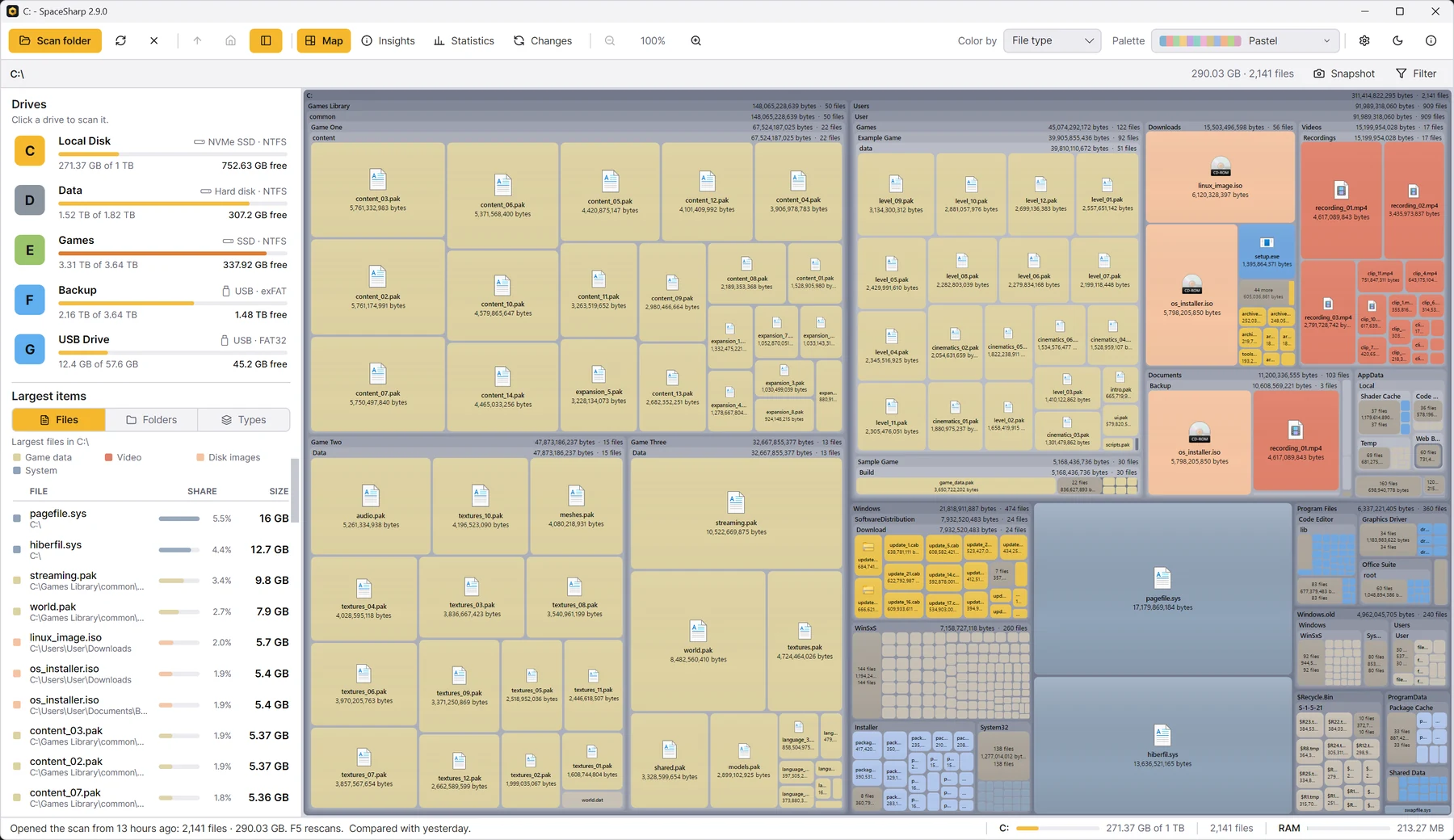
Pick a screen. The pictures are the app itself on a sample drive; the names are made up.
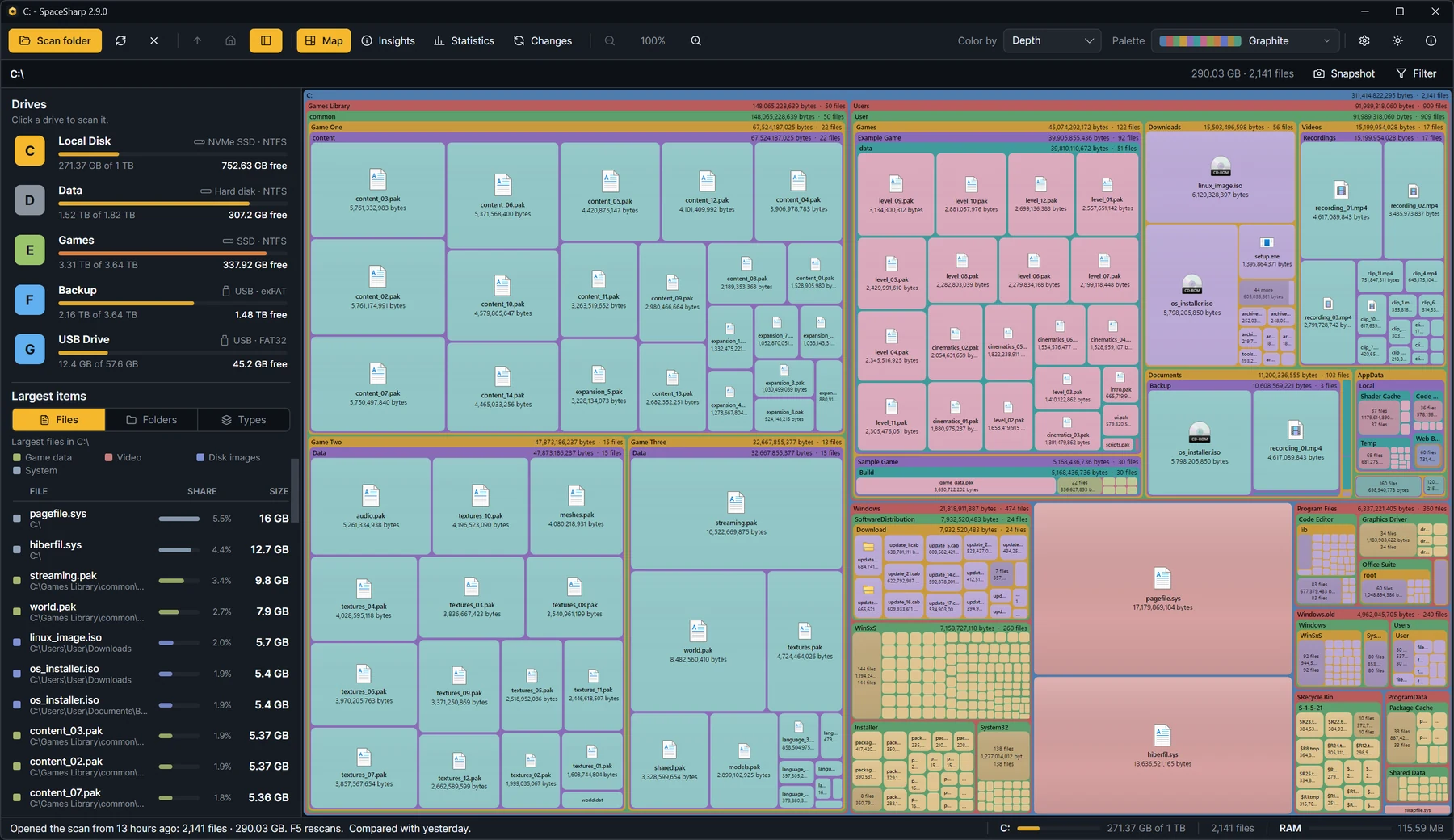
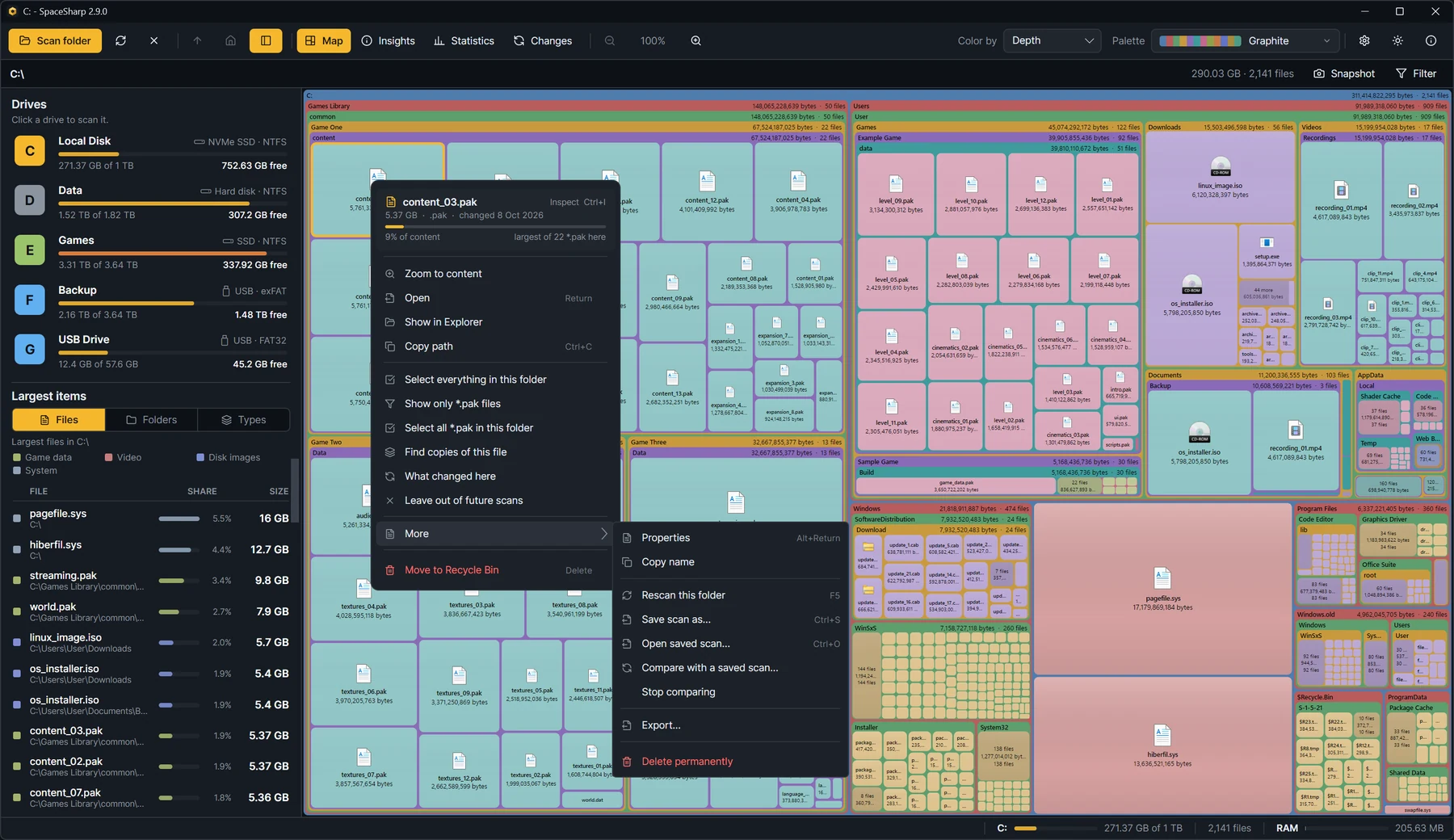
The map. Folders are frames, files are boxes.
What it does
Built for the question "what is eating my drive?"
A whole drive in seconds
NTFS drives are read straight from the master file table, after one administrator prompt. A 1 TB drive is on screen before you have found the mouse. Other file systems get a parallel folder walk, and the map draws itself as it goes.
Ask in plain words
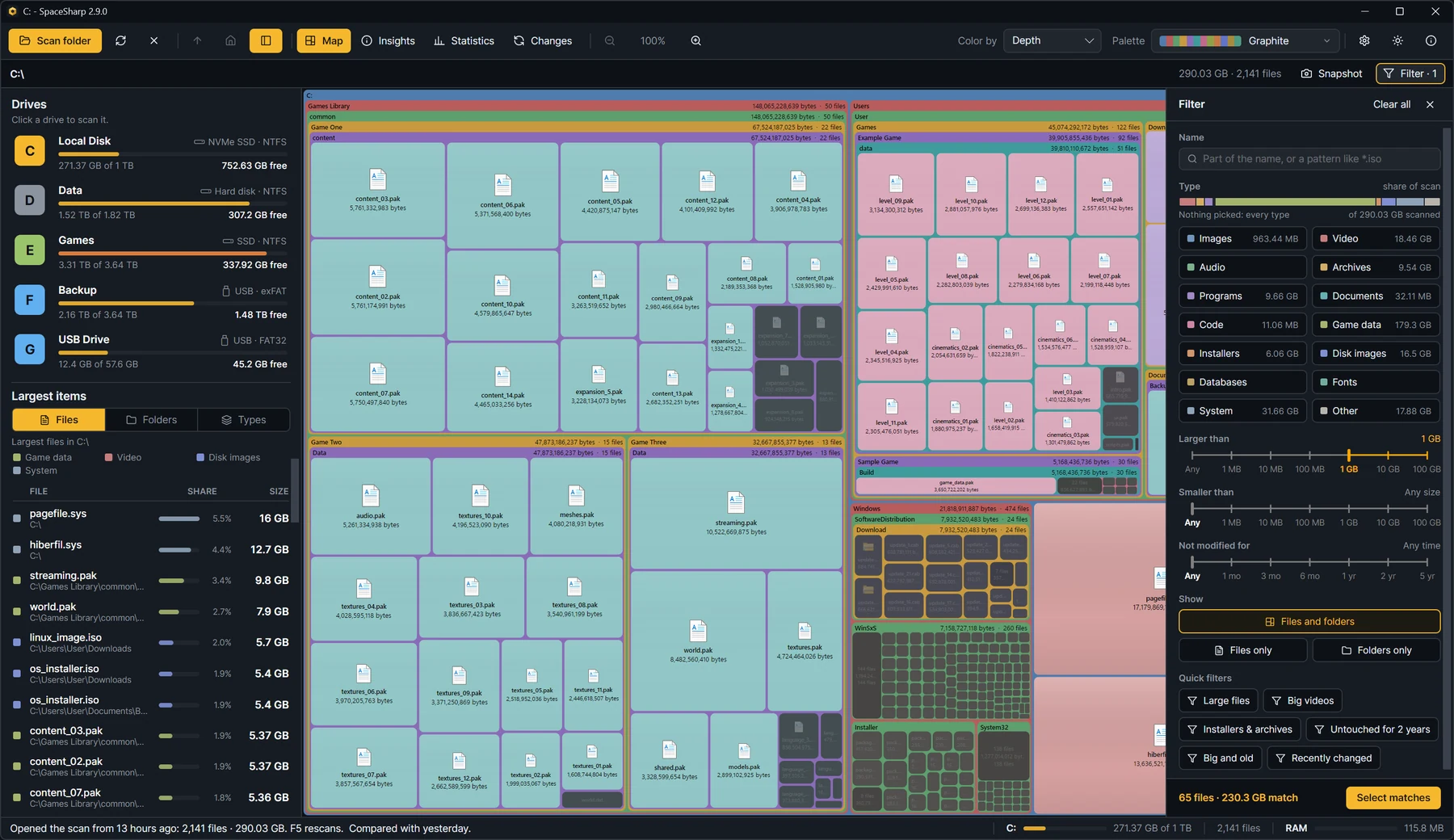
Type what you are looking for and the map dims everything else, so you see where the matches are. A drawer with file-type tiles, size and age scales and quick filters writes the same filter for you.
Remembers every scan
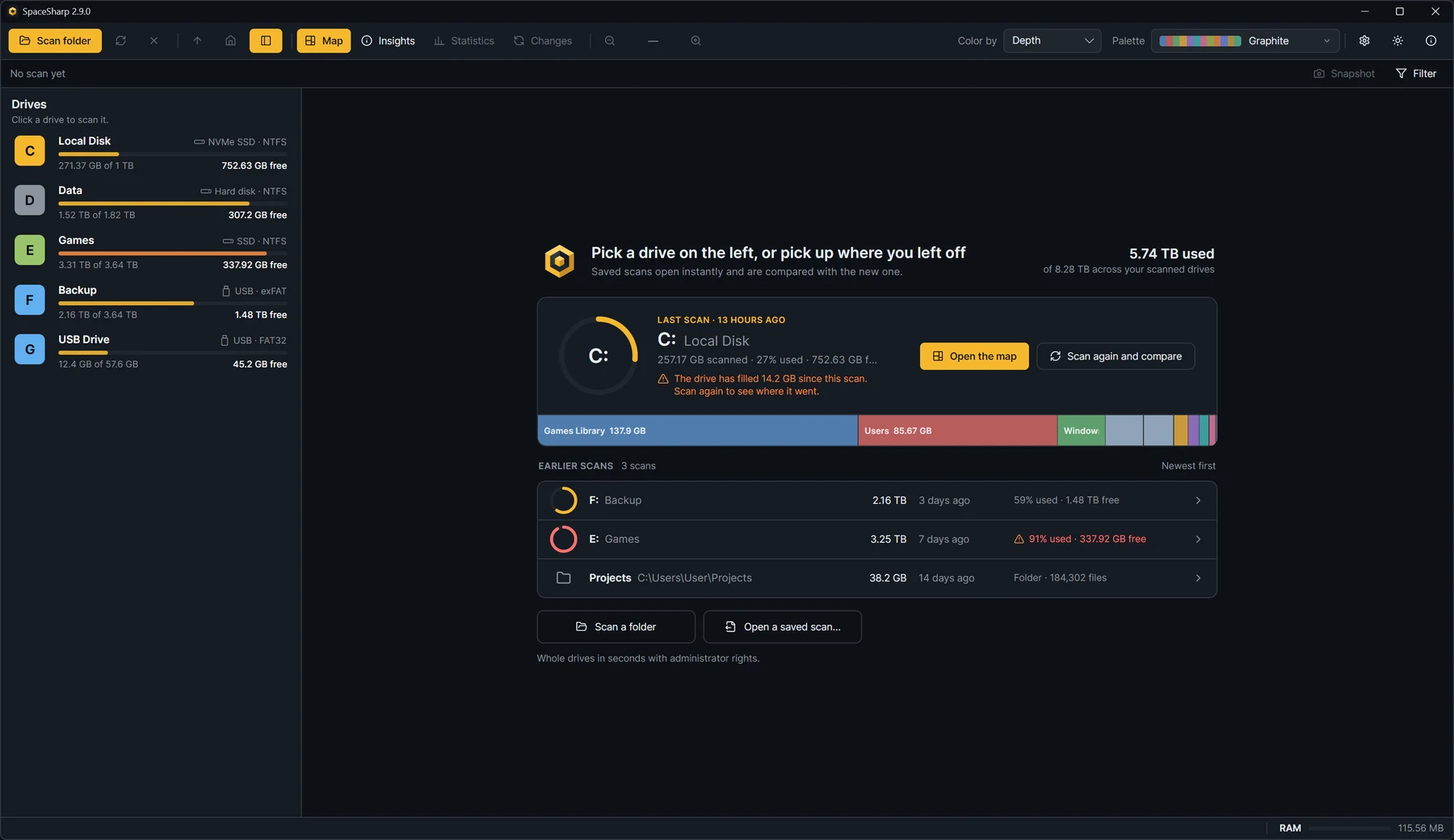
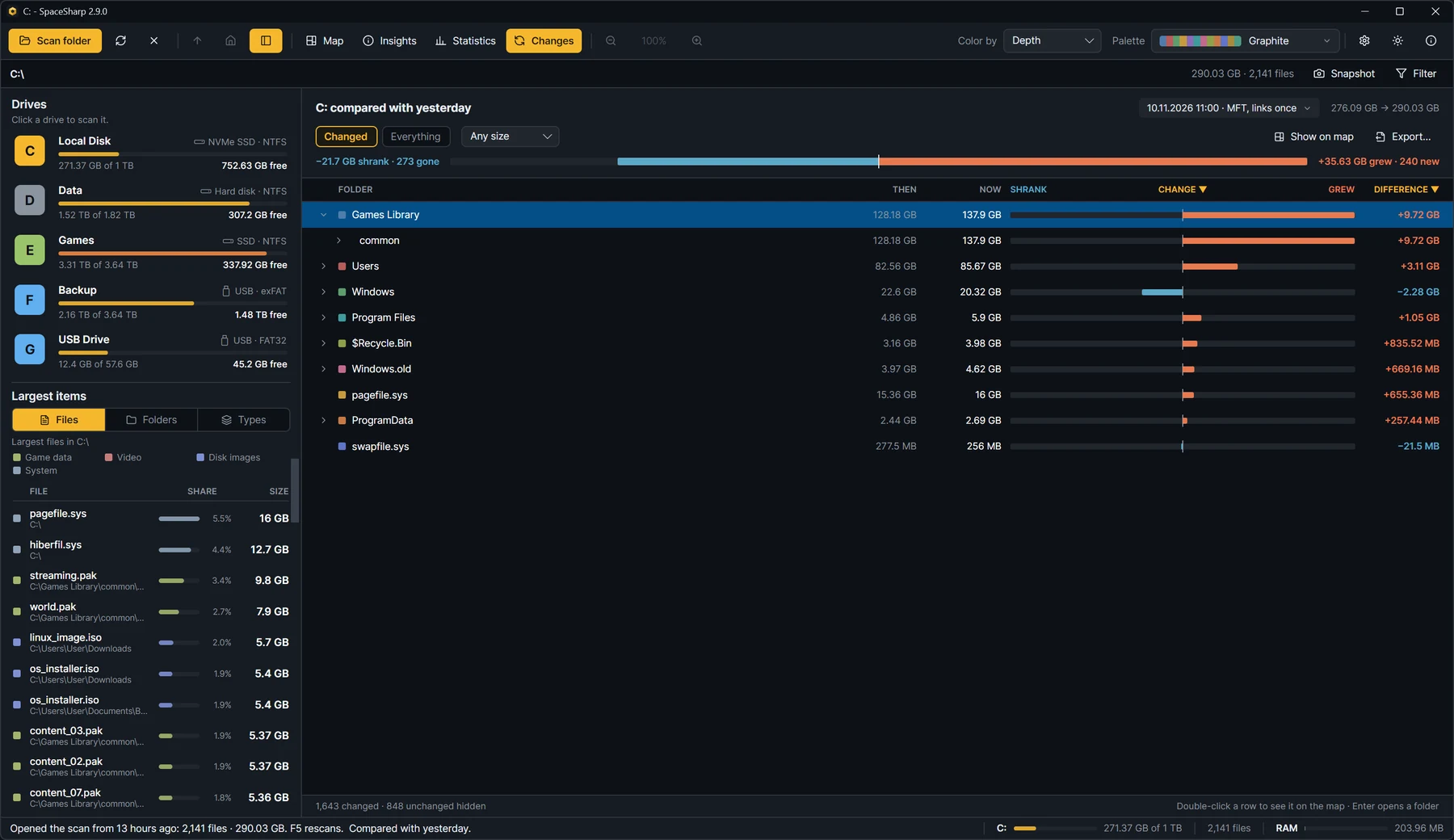
Every scan is compared with the one before. The Changes view lays them out folder by folder: size then, size now, how much it grew or shrank, and the files that appeared or disappeared.
Knows what is junk
Windows.old, caches, the Recycle Bin, old Downloads, installers already run, build output you can rebuild: one checkbox per row, one Recycle button, and a bar for how full the drive would be with them gone.
Inspect anything
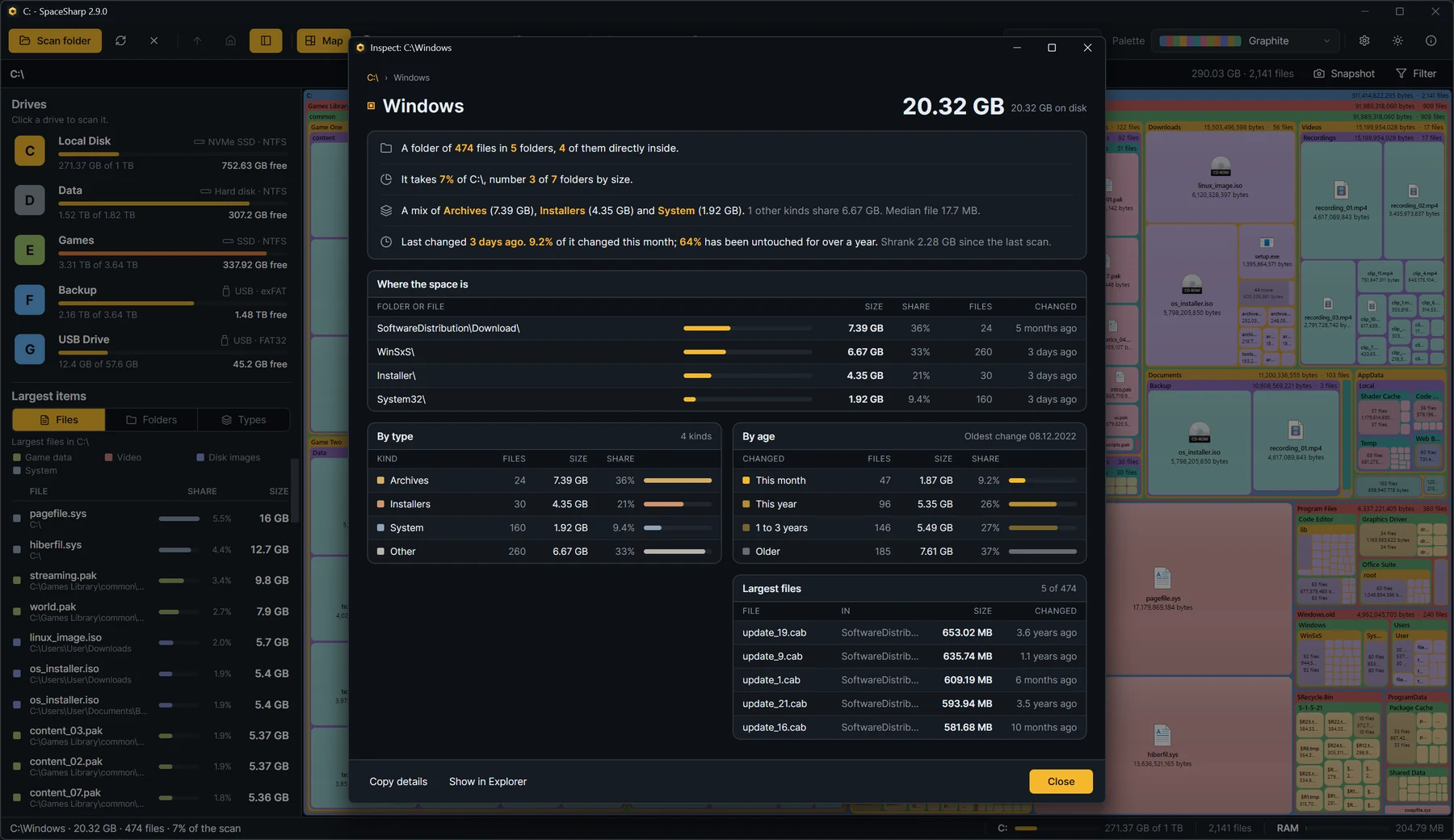
Size and share, where the space is inside, donuts by type and by age, and a callout when one thing holds most of a folder.
Color by type
Fourteen categories with a legend, so a drive full of game assets looks different from one full of photos. Or color by top folder or by depth.
Looks the way you want
Twenty-four palettes, any of them on either theme, five shading looks from a crisp rim to a soft pillow, and a palette editor built on hue and scheme. It also runs in the browser, at palette.spacesharp.app.
Deletes safely
Everything goes to the Recycle Bin, never straight to deletion, and the map updates without a rescan.
Finds duplicates
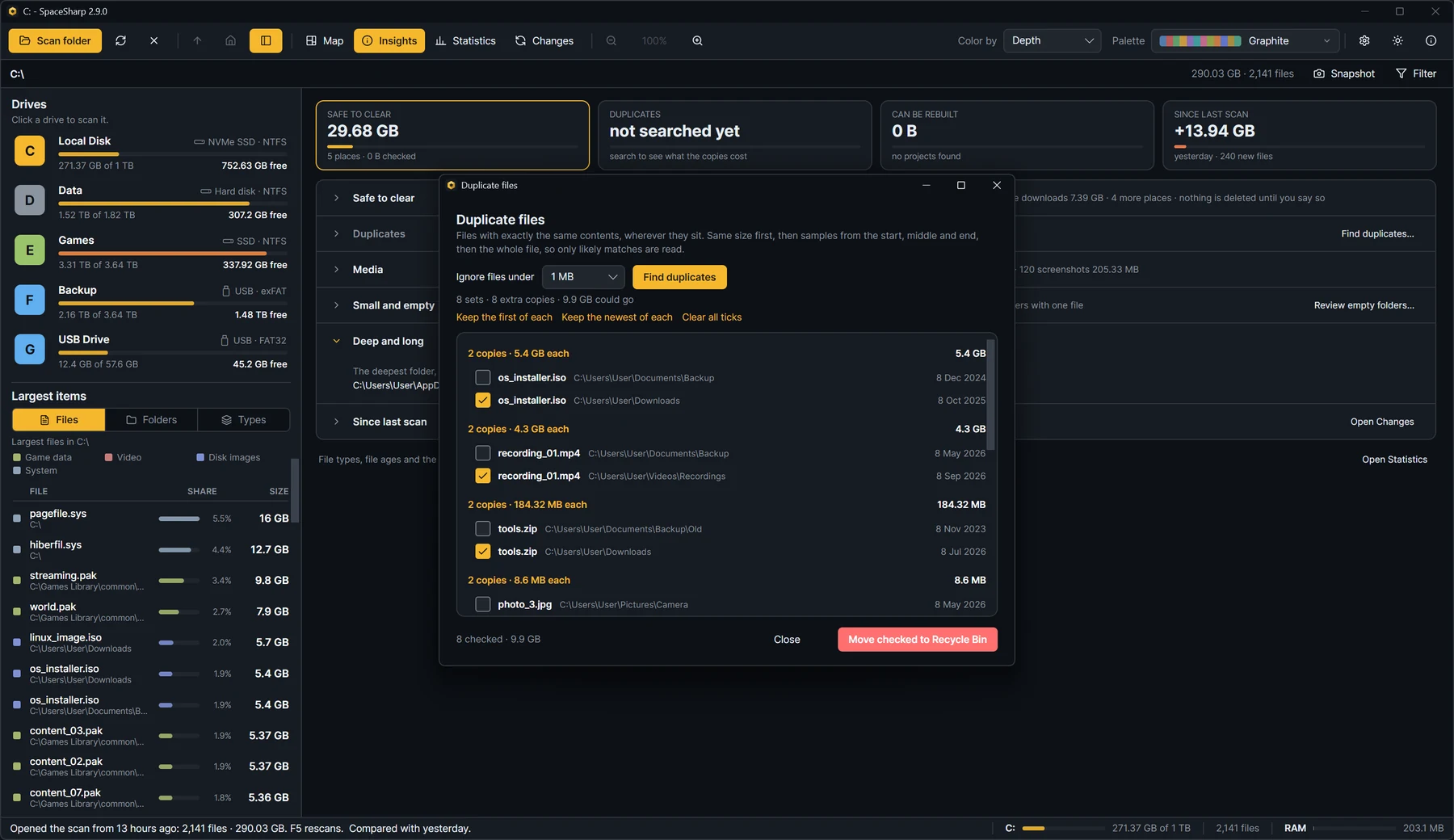
Files with identical contents, wherever they sit, on Ctrl+D. Same size first, then samples from the start, middle and end, then a side-by-side read that stops at the first difference, so little is read. Keep the first or the newest of each set with one click.
Lists empty folders
Every folder with no files in it at any depth, the nested ones counted, all ticked and ready for the Recycle Bin.
Deletes what Explorer cannot
A folder nested inside itself hundreds of levels deep crashes Explorer. SpaceSharp shows it as a loop and removes it, long path and all, after a warning.
Statistics, as a report
Files by size class, kind and age, the largest files and folders, and every extension with an export. Each figure opens the map filtered to what it counts.
Never lost in the map
Zoom in and a minimap shows the whole scan in a corner, with a box where you are. Click to jump, drag to move, or swap it for thin markers on the edges.
Achievements
Twenty-six of them, kept as a journal of what you unlocked and when. Speedrun, Terabyte Club, Hoarder, Whale, Dust, and Mirror, Mirror for comparing a scan with itself. Locked ones show only their name.
Insights and Statistics
The numbers, when you want numbers.
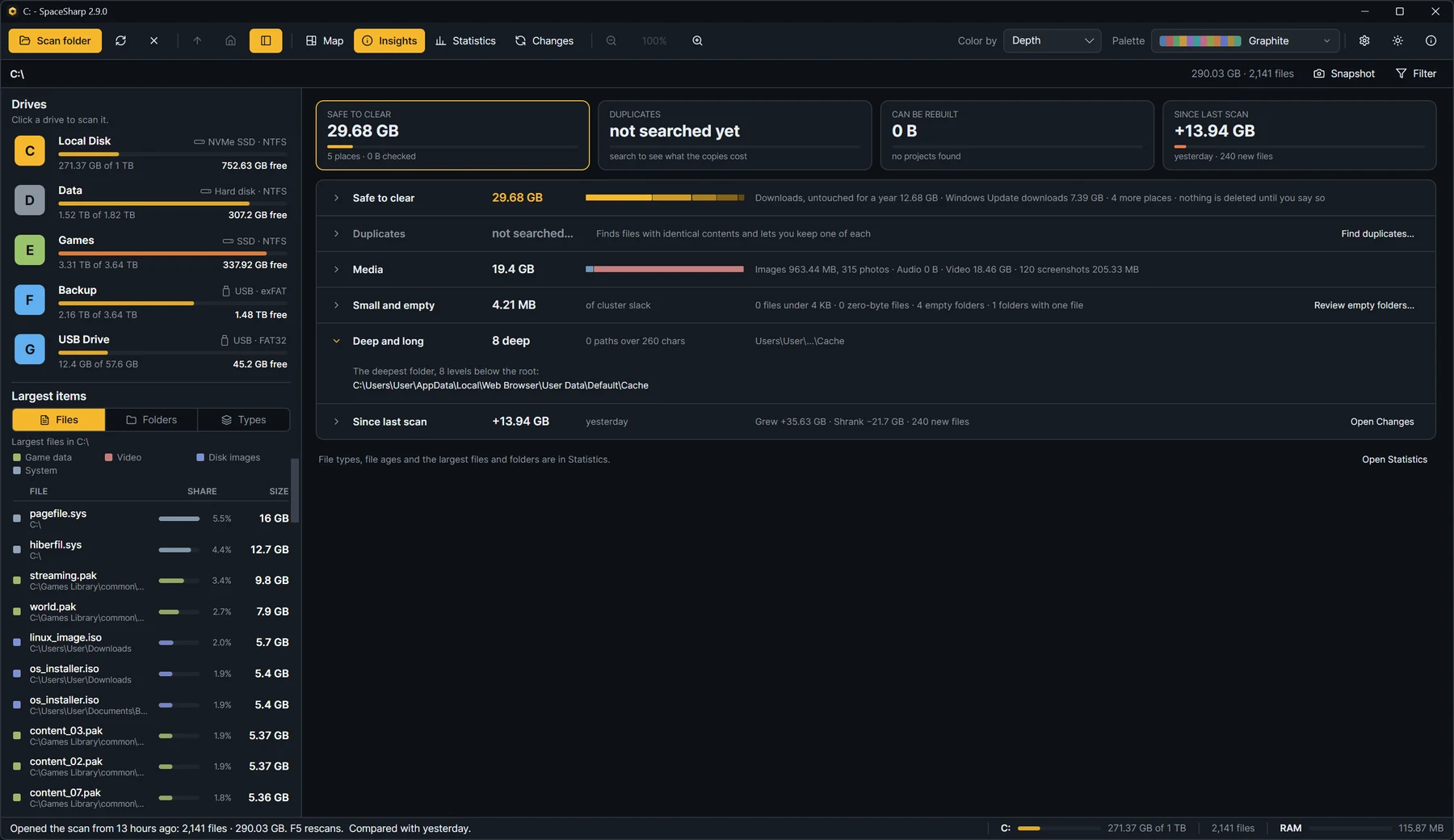
Two views sit beside the map. Insights is what you can do about a full drive: what is safe to clear, duplicates, what can be rebuilt, your games, media and developer leftovers, with tiles that add up what could be freed. Statistics is the report: what is on the drive by size, kind, age and extension. Every row and figure is a click back to the map.
- StatisticsFiles by size class, kind and age, the largest files and folders, and the biggest extensions, narrowed to any folder.
- What could be freedTiles for safe to clear, duplicates and what can be rebuilt, and rows in the order of how much they usually give back.
- Safe to clearPlaces that are usually fine to empty, each with a checkbox, and one Recycle button.
- DuplicatesFiles kept twice, found by contents, in sets; keep the first or the newest of each.
- Deep and longThe deepest folder, the paths over 260 characters, and the folders nested inside themselves, with a button to delete the repeats.
Compared
They all read the same disk.
The difference is what you can do once you see it.
| Feature |  SpaceSharp | WizTree | WinDirStat | SpaceMonger |
|---|---|---|---|---|
| Reads the NTFS file table for fast scans | YesAs administrator | Yes | YesSince 2.5 | No |
| Zoomable map you fly into | Yes | No | No | Yes |
| Filter in plain words | Yes | PartlySearch operators | PartlySearch | No |
| Says what is safe to clear | Yes | No | No | No |
| Inspect with shares, type and age breakdown | Yes | PartlyBasic | PartlyBasic | No |
| Saves scans and shows what changed | Yes | PartlyExport only | No | No |
| Finds duplicate files by contents | Yes | PartlyBy name and size | Yes | No |
| Dark mode | Yes | Yes | YesSince 2.5 | No |
| Open source | YesMIT | No | YesGPL | NoAbandoned |
| Price | FreeFree | Partly freeFree for home use | FreeFree | PaidWas paid |
As of November 2026, from each product's own documentation. Corrections welcome on GitHub. In more detail: SpaceSharp vs WinDirStat, SpaceSharp vs WizTree, SpaceSharp vs TreeSize Free, or all four side by side.
In plain words
A disk space analyzer for Windows 10 and 11, with a duplicate finder built in. Mac and Linux next, Android to follow.
SpaceSharp is a free disk space analyzer for Windows. It scans a drive and draws it as a treemap: every folder is a frame, every file is a box, and the size of each box is the space it takes up. The biggest boxes are where your disk space went, which is the whole point. You zoom into a folder by double-clicking it, go back up with Backspace, and read the name and size of anything under the mouse.
On NTFS drives the scan reads the master file table directly, so a 1 TB disk is on screen in a couple of seconds rather than minutes. The filter takes plain words such as videos over 500MB older than 1 year and dims everything else, so you see where the matches are without losing the map. The Insights view turns the same scan into numbers: space by file type, when files were last changed, the largest folders and files, your game libraries, media, developer leftovers and Downloads, what changed since the last scan (with a Changes view that lays two scans out folder by folder), and a list of places that are usually safe to clear, such as Windows.old, caches and the Recycle Bin, with one button to send them there.
Two rows are tools of their own. The duplicate finder searches the scan for files with identical contents, same size first, then the first bytes, then a full hash, so it reads very little, and shows them in sets you tick; Keep the first of each or Keep the newest of each does the ticking for you. The empty folder list shows every folder with nothing in it, ready for the Recycle Bin. And for the folder Explorer cannot open, the one nested inside itself hundreds of levels deep, the map's right-click menu has Delete permanently, which reaches it with long-path names and removes it after a warning.
If you have used WinDirStat, WizTree, TreeSize or SpaceMonger, SpaceSharp sits in the same family and was built in the spirit of SpaceMonger: a zoomable map you fly into, with a modern dark interface, twenty-four palettes in dark and light, a map that draws itself while a scan runs, a shortcuts window that draws your own keyboard, twenty-one achievements for the curious, and cleanup that goes to the Recycle Bin unless you ask for permanent. It is open source under the MIT License, has no telemetry and no accounts, and comes as a portable exe, a Setup.exe that updates itself, an MSI, or, once the package clears review, winget install ClearanceClarence.SpaceSharp. It speaks eighteen languages. Since 2.3 it is built on a cross-platform framework, so the Mac and Linux versions are on their way.
Download
Download SpaceSharp for Windows.
For 64-bit Windows 10 and 11. Windows on ARM runs them through x64 emulation.
Setup Recommended
SpaceSharp-win-x64-Setup.exeOne-click install to your profile, no admin rights, updates itself.
Download SetupPortable
SpaceSharp-win-x64.exeOne file, no install, no admin, no updates. The simplest thing that works. Put it on a USB stick.
Download the exeMSI
SpaceSharp-win-x64.msiA regular installer where you choose the folder and whether it is for you or everyone. Updates itself.
Download the MSI32-bit Windows: Setup, MSI or portable exe. Every release lists a SHA256SUMS.txt you can check a download against. Every download is code-signed, so Windows shows a verified publisher. SmartScreen may still ask once while a new certificate earns its reputation: choose More info, then Run anyway. Release notes for every version are on GitHub Releases.
Questions
The short answers.
The docs have the long ones: every screen, every setting, every shortcut.
Is it safe? Does it send anything anywhere?
No telemetry, no accounts, no network use except the update check, which only asks GitHub for the latest release and only when you installed with the installer. The source is public, and SECURITY.md in the repository says exactly what the app reads, writes and deletes.
Why does the fast scan ask for administrator permission?
Reading the NTFS file table means opening the drive itself rather than its folders, and Windows only allows that for administrators. SpaceSharp asks once through the normal Windows prompt, a small elevated helper reads the table and hands the map back, and the helper exits. Say no and the normal scan runs instead.
What does "Safe to clear" actually do?
It looks at names only: Windows.old, the Recycle Bin, Temp folders, package caches, browser and shader caches, Windows Update downloads, and Downloads not touched in a year. Show selects them on the map; Recycle sends them to the Recycle Bin after the usual confirmation; Empty empties the bin through Windows; Review selects old downloads so you decide. Hibernation and paging files get a How to, never a button.
Deleting from the map, what exactly happens?
Files go to the Recycle Bin and the map updates to show the space as free. The one exception is Delete permanently on the right-click menu, which exists for the folders Explorer cannot open; it says plainly that it skips the Recycle Bin. Protected system folders are read-only unless you run as administrator, and even then the app never touches files by itself.
Why is the total different from Explorer or from the drive's properties?
The map counts file contents. Explorer's used space also includes the file system's own structures, shadow copies and space reserved by Windows. Hard-linked data such as WinSxS can be counted once here, which Explorer's folder sizes do not do.
Where do the saved scans go, and can I turn that off?
In your profile's local app data, one file per drive plus the previous one for comparison. Settings › Behavior sets how long they are kept and deletes them all in one click; the app starts on the start screen, where the last scan is one click away.
Can it find duplicate files?
Yes. The Duplicates row in Insights searches the scan for files with identical contents: same size first, then the first bytes, then a full hash, so only likely matches are read and the search is quick. The sets come back biggest waste first, Keep the first of each or Keep the newest of each ticks the rest, and the delete goes to the Recycle Bin. Hard links are the same file and are not counted. The Small and empty row has the same kind of list for folders with nothing in them.
Explorer crashes on a folder and cannot delete it. Can SpaceSharp?
Yes. A folder nested inside itself hundreds of levels deep, the kind a bad extraction or a junction leaves behind, is too long a path for Explorer. Right-click it on the map and choose Delete permanently: SpaceSharp uses long-path names, walks the tree without recursion and removes it bottom up. It asks first and it cannot be undone, which the dialog says. The Deep and long row in Insights points such folders out and offers to delete the repeats.
What languages does it speak?
Eighteen, following Windows by default: English and Norwegian, and machine translations of Arabic, Chinese (Simplified), Danish, Dutch, French, German, Italian, Japanese, Korean, Polish, Portuguese, Russian, Spanish, Swedish, Turkish and Ukrainian. The app marks the machine-made ones as such; corrections are welcome through CONTRIBUTING.md. Right-to-left languages mirror the whole window.
What does it need to run?
Windows 10 or 11. The portable exe and the installers carry their own .NET runtime, so nothing else needs installing. The Small build on the release page is for people who already have the .NET Runtime.
Is there a Mac, Linux or Android version?
Not yet as a download. Since 2.3 the app is built on a cross-platform framework and runs on Mac and Linux from source; the packaged versions come in a later release, and Android after that. There is no date; watch the release page or the changelog.
Documentation
Every button, explained.
SpaceSharp docs docs.spacesharp.app
The full guide for SpaceSharp 2.6.
How to read the map, the filter, Insights, Changes between scans, duplicates and empty folders, cleaning up safely, every setting, palettes, keyboard shortcuts, and fixes for common problems.
More from ClearanceClarence
Also made in Norway.
Ledger tryledger.dev
The database tool phpMyAdmin should have been.
A self-hosted web tool for MySQL and MariaDB: a SQL editor with autocomplete, inline cell editing, ER diagrams, search across every table, a live process monitor, and twenty themes. Plain PHP and vanilla JavaScript, no build step, no Composer. Free and open source under the MIT License, like SpaceSharp.