C drive full for no reason?
The drive is red in File Explorer, yet when you add up your own folders they come to half of it. The space is not lost. It sits in places Explorer does not show you, and each of them can be checked in a few minutes.
Why the numbers do not add up
Select every folder on C:, open Properties, and the total is often far below what the drive reports as used. Three things cause the gap:
- Hidden and system files. The page file, the hibernation file and the restore points are hidden, and Explorer leaves them out unless you ask for them.
-
Folders you may not open. Explorer counts nothing inside a folder your account cannot read, such as other users' profiles and
parts of
C:\WindowsandC:\ProgramData. -
Space that is not a file. Restore points and shadow copies live in
System Volume Information, which shows as empty even when it holds tens of gigabytes.
So the first job is not deleting anything. It is getting a count you can trust.
Step 1: ask Windows where the space is
- Open Settings › System › Storage.
- Wait for the bars to fill in, then choose Show more categories.
- Read the list from the top. Installed apps, Temporary files, System & reserved and Other are the usual big ones.
- Open System & reserved. It shows the size of the hibernation file, the page file and System Restore on their own lines.
This screen is honest about totals, but coarse: Other can be 80 GB with no hint of which folders make it up. That is the limit of the built-in view.
Step 2: check the usual hidden suspects
The hibernation file
C:\hiberfil.sys holds the contents of memory when the PC hibernates, and its size follows the amount of RAM. On a PC with 32 GB of
memory it can take well over 10 GB. If you never use Hibernate, open Terminal as administrator and run:
powercfg /hibernate offThe file is removed at once. Fast Startup is turned off with it, so a cold boot takes a little longer.
Restore points
Search for Create a restore point, pick the C drive, choose Configure and look at Current Usage. Lower Max Usage to a few percent and Windows drops the oldest points on its own.
The previous Windows
After a version upgrade, C:\Windows.old keeps the whole former installation for about ten days, often 20 GB or more. Remove it
through Settings › System › Storage › Cleanup recommendations or Disk Cleanup's Clean up system files, not by
hand.
Windows Update leftovers
Run Disk Cleanup, choose Clean up system files and tick Windows Update Cleanup and
Delivery Optimization Files. Do not delete anything inside C:\Windows\WinSxS yourself. Windows needs that folder
to repair and update itself.
App data that grows quietly
Most surprises are in your own profile, in the hidden AppData folder: browser caches, chat apps such as Teams and Discord, phone
backups, and the virtual disks of Docker and WSL, which grow and never shrink by themselves. Game launchers and their shader caches belong on
this list too.
Step 3: see the whole drive at once
Checking suspects one by one works when you guess right. When you do not, you need the opposite approach: read everything, then look at what is big.
That is what a disk space analyzer does. SpaceSharp is a free, open source one. Started as administrator it reads the drive's file table directly, so it counts hidden files, system files and the folders Explorer cannot open, and a whole drive takes seconds.
- Download SpaceSharp and start it. Nothing needs installing with the portable exe.
- Click the C drive and allow the administrator prompt, which is what makes the fast scan possible.
- Read the map. Every folder is a frame and every file a box, sized by the space it takes, with its name and size written on it. The largest boxes are your answer.
- Open Insights for a list of what is safe to clear, with the total it adds up to.
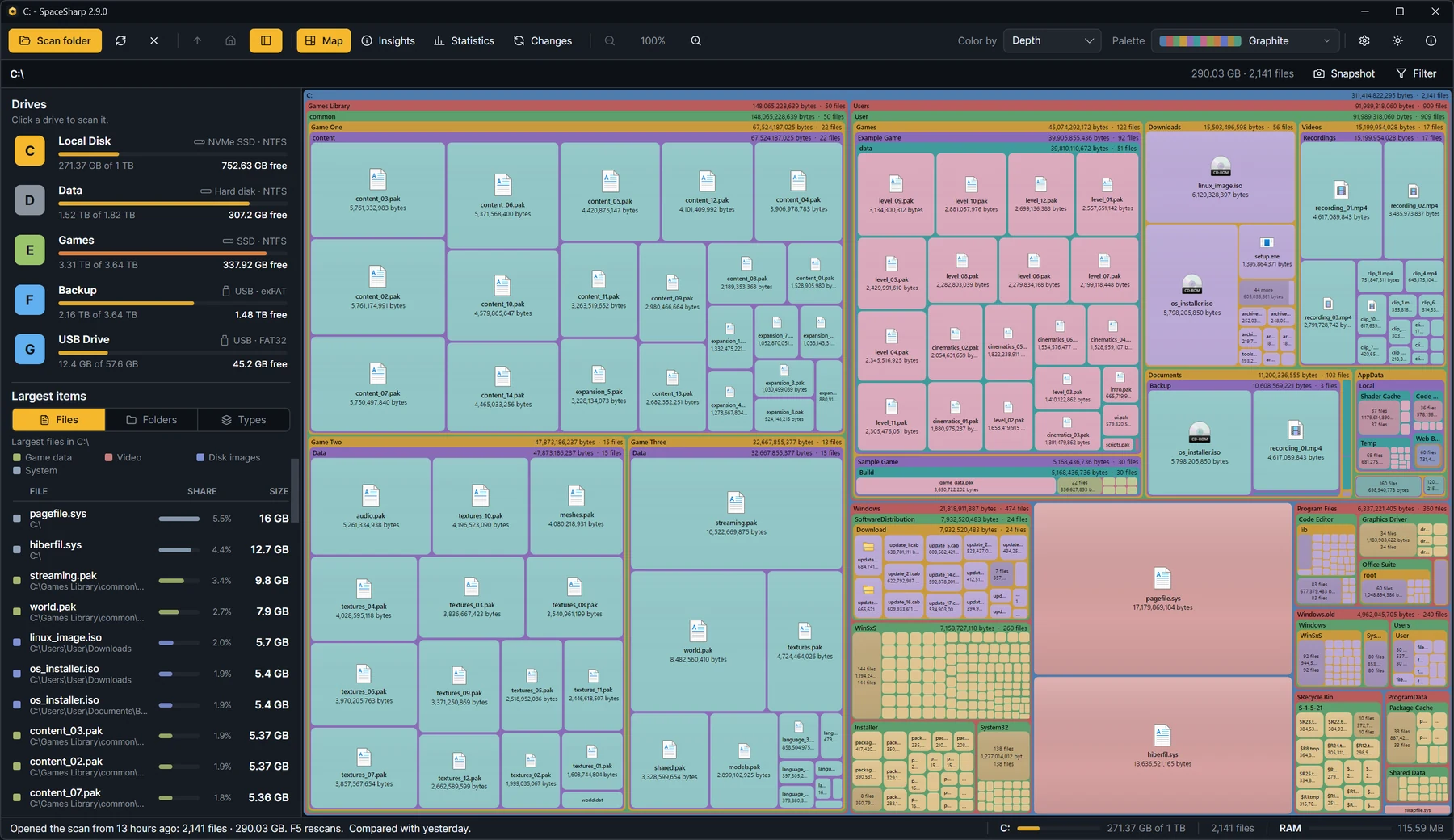
If the drive filled up recently, scan again in a few days. SpaceSharp keeps each scan, and its Changes view lists every folder with its size then and now, which answers the real question: what grew?
What not to delete
-
pagefile.sysandswapfile.sys. Windows manages them. Removing the page file can make programs fail when memory runs short. -
Anything in
C:\Windows,Program FilesorProgramDataby hand. Uninstall programs through Settings and clean Windows through Disk Cleanup. - Empty folders inside app folders. Some apps expect them to exist and stop working when they are gone.
When in doubt, send things to the Recycle Bin and leave them there for a week before emptying it.
Questions
Short answers
Why is my C drive full when I have no files on it?
Because most of the space on a system drive is not your documents. Windows itself, installed programs, their caches in AppData, the page file, the hibernation file and restore points routinely add up to 60 GB or more before you save a single file.
Why does File Explorer show less used space than the drive does?
Explorer skips hidden and system files unless you turn them on, cannot count inside folders your account may not read, and never shows the space taken by restore points. A disk space analyzer that reads the file table as administrator counts all three.
Is it safe to delete hiberfil.sys?
Do not delete it by hand. Turn hibernation off with the command powercfg /hibernate off in an administrator terminal and Windows removes the file itself. You lose Hibernate and Fast Startup; nothing else changes.
How much free space should the C drive have?
Keep at least 10 to 15 percent free, and no less than 20 GB. Windows needs room for updates, the page file and temporary files, and a nearly full SSD also slows down.
What is the fastest way to see what is using the space?
A disk space analyzer. SpaceSharp reads an NTFS drive from its file table in seconds and draws every folder and file as a box sized by the space it uses.
More guides
Keep reading
Try it on your own drive.
Free and open source. Scan the C drive and read the answer off the map.
v2.10.0 · Windows 10 and 11 · MIT · code-signed · no telemetry