How to find large files on Windows
A handful of files usually holds most of the space: an old video export, a virtual machine, a forgotten installer. Here are four ways to find them on Windows 11 and 10, from the quickest to the most complete.
1. Search by size in File Explorer
- Open File Explorer and go to the drive or folder to search, such as This PC › Local Disk (C:).
- Click the search box and type
size:giganticfor files over 4 GB. - Wait for the green bar to finish, then sort by Size from the Sort menu.
The named sizes are fixed: size:large is 128 MB to 1 GB, size:huge is 1 to 4 GB and size:gigantic is
everything above that. You can also write your own limit, such as size:>500MB.
Good for: a quick look in one folder. Weak at: whole drives, where the search is slow, and anything hidden or in a folder you may not open.
2. Let Storage settings group them
- Open Settings › System › Storage.
- Choose Cleanup recommendations (Windows 11) and open Large or unused files.
- Tick what you no longer need and choose Clean up.
Good for: a safe first pass. Weak at: completeness. It lists a short selection from your own folders and says nothing about the rest of the drive. Windows 10 has no such list; use the Other and Documents categories on the Storage page.
3. List the 25 largest files with PowerShell
Open Terminal and paste this. It walks the drive and prints the largest files with their size in gigabytes:
Get-ChildItem C:\ -Recurse -File -ErrorAction SilentlyContinue |
  Sort-Object Length -Descending |
  Select-Object -First 25 @{n='GB';e={[math]::Round($_.Length/1GB,2)}}, FullName
Change C:\ to any folder, and 25 to the number you want. Run the terminal as administrator to include folders your
account cannot read.
Good for: an exact, sorted list with nothing to install. Weak at: speed, since it opens every folder in turn and a full system drive takes minutes, and at showing where the space is: twenty-five paths do not tell you that one folder holds ten thousand small files.
4. Read the drive as a map
A list answers "which files are biggest". A treemap also answers "which folders are biggest, and why", because it draws everything at once: folders as frames, files as boxes, each as large as the space it takes.
- Download SpaceSharp, a free and open source disk space analyzer, and start it.
- Click a drive. As administrator it reads the file table and is done in seconds.
- Look at the biggest boxes, or open Largest items in the side panel for the top files, folders and file types as a list.
-
To narrow it down, press Ctrl+F and type what you mean, for example
videos over 1GB older than a year. Everything else dims and the matches stay lit.
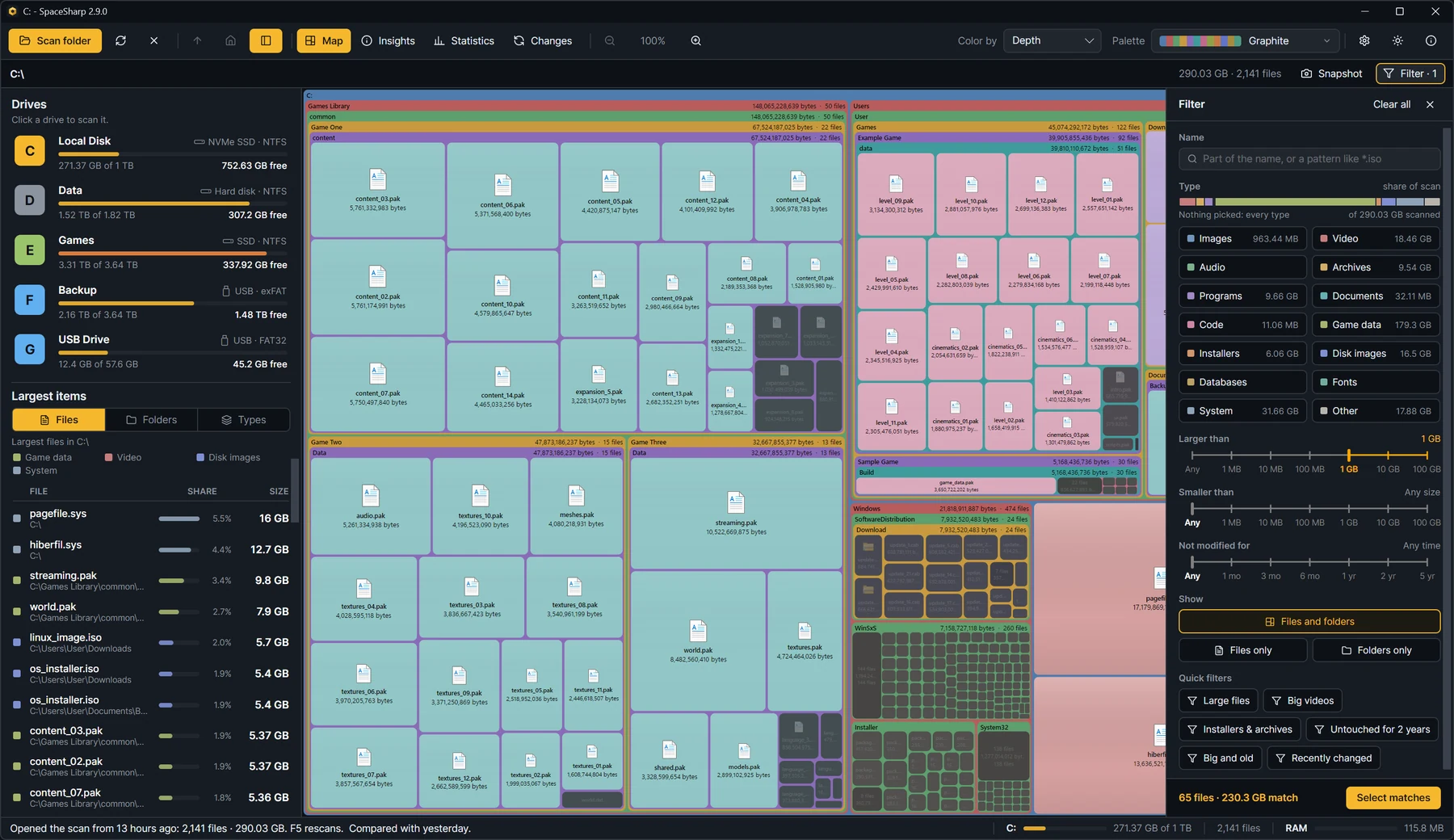
Right-click a box to open its folder or send it to the Recycle Bin. The map updates in place, so you see the space come back.
Which one should you use?
- One folder, right now: the Explorer search.
- A cautious tidy-up: Cleanup recommendations.
- A script or a server without a desktop: PowerShell.
- A full drive you want to understand: a treemap. It is the only one of the four that shows hidden files, folders you cannot open and thousands of small files adding up.
Questions
Short answers
How do I find files larger than 1 GB on Windows 11?
In File Explorer, open the drive, click the search box and type size:>1GB. For the whole drive including hidden and system files, scan it with a disk space analyzer such as SpaceSharp and filter for files over 1 GB.
What does size:gigantic mean in File Explorer?
It is one of Explorer's built-in size filters and matches files larger than 4 GB. The others are large (128 MB to 1 GB) and huge (1 to 4 GB).
Why can't Windows search find my biggest files?
Search skips hidden and system files, cannot read folders your account has no rights to, and may be limited to indexed locations. Files such as hiberfil.sys, pagefile.sys and other users' data never show up.
Which file types are usually the largest?
Video, disk images (ISO, VHDX), virtual machines, game data, backups and installers. On developer machines, package caches and container images are common too.
Is it safe to delete large files I do not recognize?
Not without checking. Look at the folder it sits in: anything under Windows, Program Files or ProgramData belongs to the system or a program. Send files to the Recycle Bin first so a mistake can be undone.
More guides
Keep reading
Try it on your own drive.
See the largest files and folders on any drive in seconds, free.
v2.10.0 · Windows 10 and 11 · MIT · code-signed · no telemetry