How to free up disk space on Windows 11
Start with what is safe and large, and stop when you have enough room. These nine steps are in that order. The same steps work on Windows 10, with the Settings pages named slightly differently.
The quick wins
1. Empty the Recycle Bin
Deleted files still take space until the bin is emptied. Right-click it on the desktop and choose Empty Recycle Bin.
2. Clear temporary files
Open Settings › System › Storage › Temporary files, wait for the scan, and remove what is ticked. Look twice at Downloads before ticking it: that is your own Downloads folder, not a cache.
3. Run Cleanup recommendations
On the same Storage page, Cleanup recommendations lists large or unused files, files already synced to the cloud, and apps you have not opened in months.
4. Sort your Downloads folder by size
Installers you have already run, and files you opened once, pile up here. Sort by Size and delete from the top.
The system's own leftovers
5. Clean up after Windows Update
Search for Disk Cleanup, pick the C drive, choose Clean up system files and tick Windows Update Cleanup, Delivery Optimization Files and, after an upgrade you are happy with, Previous Windows installation(s). The last one alone is often 20 GB.
6. Turn off hibernation if you never use it
In a terminal opened as administrator:
powercfg /hibernate offThis removes hiberfil.sys, which is sized from your RAM. You lose Hibernate and Fast Startup.
7. Limit System Restore
Search for Create a restore point, choose Configure and lower Max Usage. A few percent of the drive is enough for a handful of restore points.
The big things
8. Uninstall what you do not use
Open Settings › Apps › Installed apps and sort by Size. Games are the usual giants: one modern title can take more than 100 GB.
9. Find what the steps above missed
If the drive is still tight, the space is somewhere none of these pages show: an app's cache, a virtual disk, an old backup, a folder of exports. Finding it by guessing is slow.
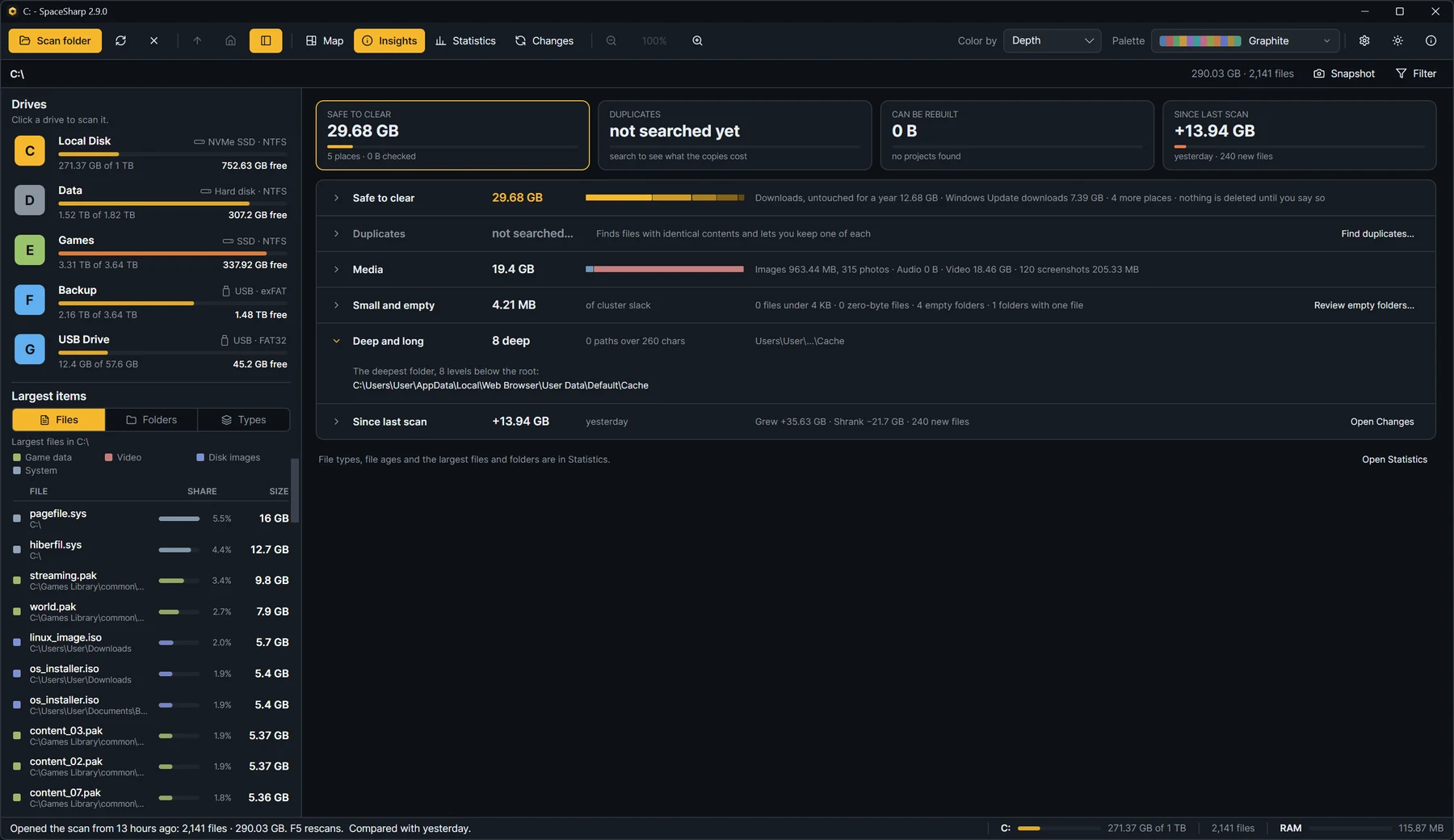
A disk space analyzer shows the whole drive instead. SpaceSharp is free and open source: it scans a drive in seconds and draws every folder and file as a box sized by the space it uses. Its Insights view lists what is safe to clear (temp folders, caches, old downloads, installers already run) with the total, and every row is a click back to the map.
Keep it from filling up again
- Turn on Storage Sense. In Settings › System › Storage it empties the Recycle Bin and temporary files on a schedule.
- Move big folders off C:. Game libraries, video projects and virtual machines can live on another drive. Most launchers let you move a game without downloading it again.
- Look again in a month. SpaceSharp keeps each scan, and its Changes view shows which folders grew since the last one.
What to leave alone
Do not delete by hand inside C:\Windows (including WinSxS, Installer and System32),
Program Files or ProgramData, and leave pagefile.sys to Windows. Registry cleaners and "PC optimizer"
programs free almost nothing and break things often enough to avoid.
Questions
Short answers
What can I safely delete to free up space on Windows 11?
The Recycle Bin, temporary files, Windows Update Cleanup, Delivery Optimization files, the previous Windows installation after an upgrade you are keeping, and your own old downloads. Use the Storage settings and Disk Cleanup for the system parts instead of deleting them by hand.
How much space does Windows 11 need?
A fresh installation takes roughly 25 to 30 GB, and Microsoft requires a 64 GB drive. With updates, the page file and programs, plan for well over 60 GB before your own files.
Does deleting temporary files cause problems?
No. Programs recreate what they still need. Close your apps first so files in use are not skipped.
Is Disk Cleanup still in Windows 11?
Yes. Search for Disk Cleanup or run cleanmgr. Its Clean up system files button reaches Windows Update leftovers that the Settings page does not always list.
Why does my disk fill up again after I clean it?
Something is still writing: a cache with no size limit, a backup job, a virtual disk that grows, or logs. Compare two scans a few days apart to see which folder grew.
More guides
Keep reading
Try it on your own drive.
See what is safe to clear on your drive, and how much it adds up to.
v2.10.0 · Windows 10 and 11 · MIT · code-signed · no telemetry